AuthorCat AuthorCat

How to connect your computer

The AuthorCat Bridge application links your AI to the workbench in your browser. You connect once.

  1. On the portal, in the “AuthorCat Bridge application” block, click Download for Windows and run the file you get — it installs itself.
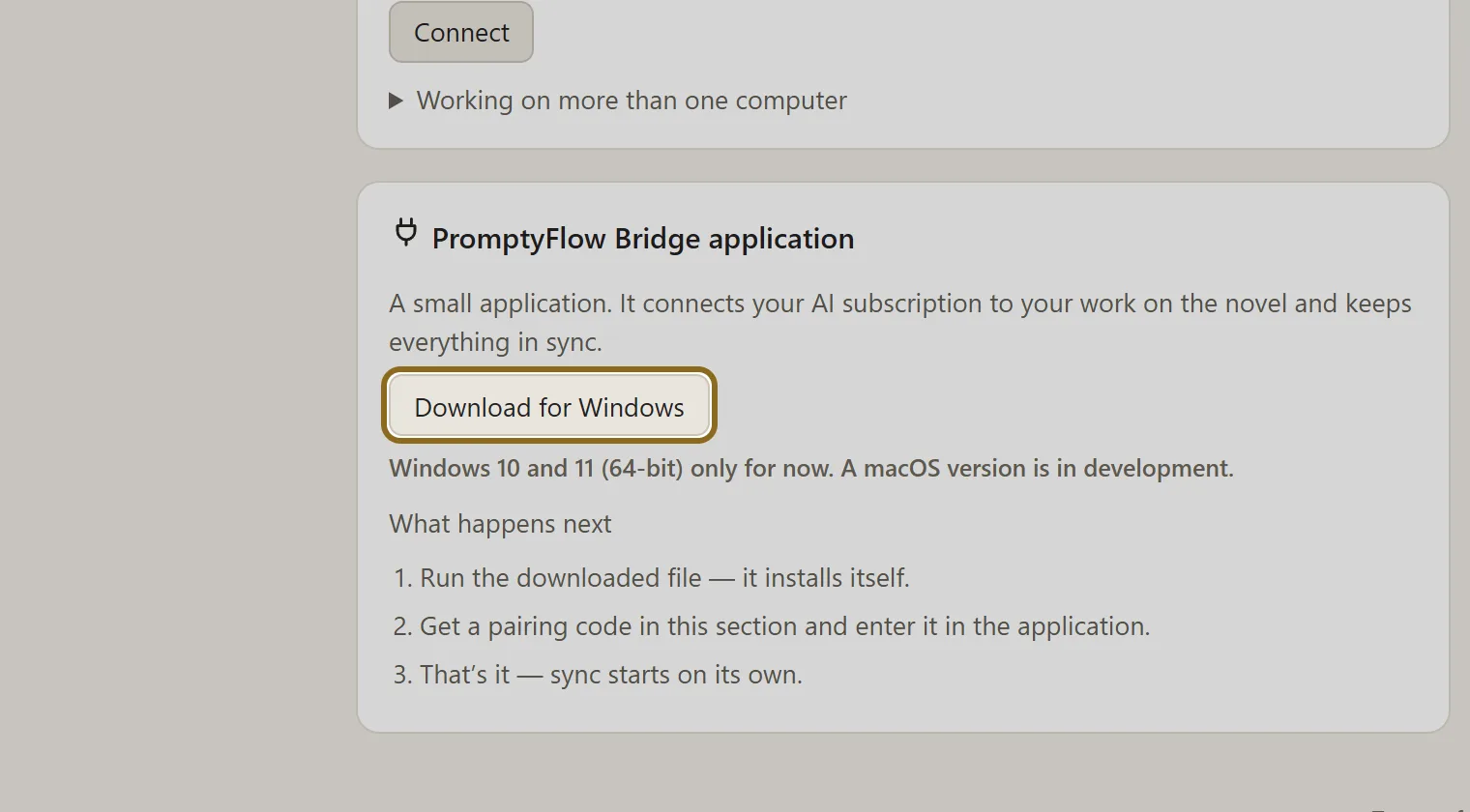
    Screenshot for step 1: On the portal, in the “AuthorCat Bridge application” block, click “Download for Windows” and run the file you get — it installs itself.

  2. In the “Computer” block, click Connect. A code appears — it is valid for 10 minutes.
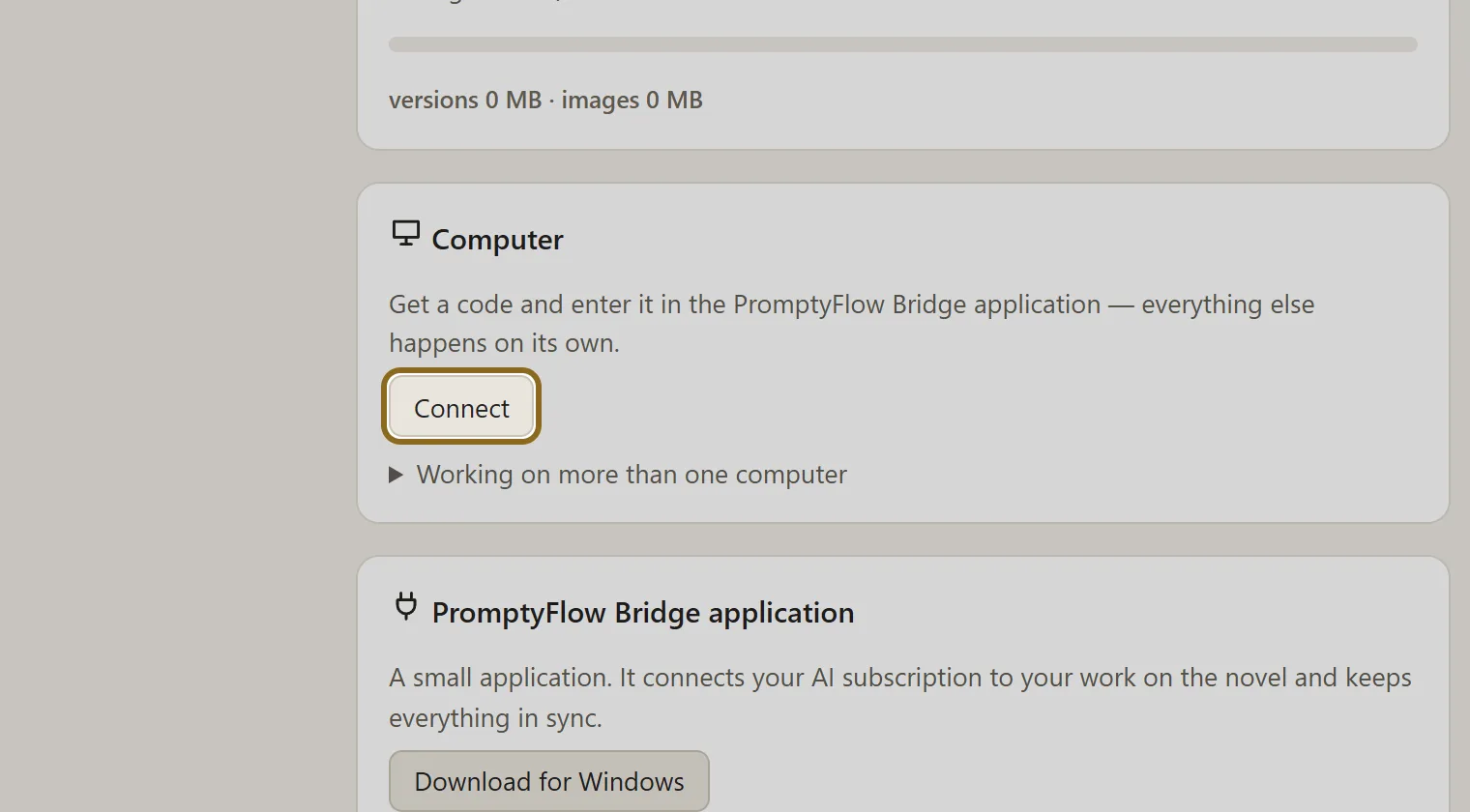
    Screenshot for step 2: In the “Computer” block, click “Connect”.

  3. Enter the code in the AuthorCat Bridge window. The portal page shows by itself that the computer is connected.

  4. Click Go to my novels — your workbench is ready.

Screenshot for step 1: On the portal, in the “AuthorCat Bridge application” block, click “Download for Windows” and run the file you get — it installs itself.
Screenshot for step 1: On the portal, in the “AuthorCat Bridge application” block, click “Download for Windows” and run the file you get — it installs itself.Swipe across the picture to look closerOpen the full-size file
Screenshot for step 2: In the “Computer” block, click “Connect”.
Screenshot for step 2: In the “Computer” block, click “Connect”.Swipe across the picture to look closerOpen the full-size file